

Description
Download iMyFone AnyRecover – Free Mac Data Recovery Tool for Secure File Restoration
Introduction & Overview
iMyFone AnyRecover for Mac is a powerful, free utility designed to bring back lost, deleted, or formatted files from a wide variety of storage media. Whether you’ve emptied the Trash by accident, suffered a virus‑induced corruption, or simply need to rescue a mistakenly formatted partition, AnyRecover offers a user‑friendly interface that guides even non‑technical users through the recovery process. The software supports an extensive list of file types—including documents, spreadsheets, emails, photos, videos, and audio files—making it a versatile solution for both personal and professional environments. It works not only on MacBooks and iMacs but also on external drives, SD cards, USB flash drives, and even on mobile devices such as smartphones and cameras. By leveraging advanced scanning algorithms, AnyRecover can locate fragments of data hidden deep within the file system and present them in a preview window before you commit to recovery. This preview capability helps you avoid unnecessary restores and keeps your storage tidy. In addition to the core recovery engine, the tool provides a quick‑scan mode for immediate results and a deep‑scan mode that digs deeper when the first pass doesn’t locate the missing files. The overall goal of iMyFone AnyRecover is to deliver a secure, efficient, and hassle‑free data‑recovery experience, positioning itself as a go‑to solution for Mac users who cannot afford to lose critical information.
Core Features & Recovery Scenarios
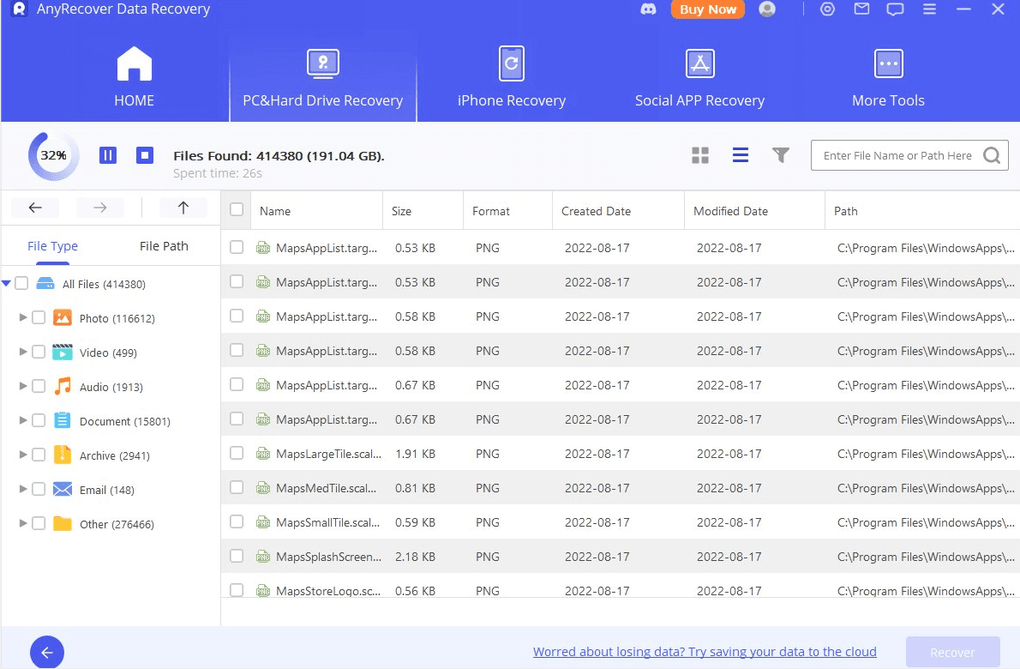
AnyRecover distinguishes itself with a suite of features that cover the most common—and some of the rarest—data‑loss situations. The software starts with an intuitive dashboard that lets you select the storage device you want to scan, then choose between a fast scan (ideal for recently deleted items) or a thorough deep scan (perfect for formatted drives or severe partition errors). During scanning, the engine creates a virtual map of the drive, identifying recoverable fragments based on known file signatures. Once the scan finishes, a preview pane lets you open images, play videos, or view document snippets, ensuring you only restore what you truly need. The application also includes a built‑in filter system, allowing you to sort results by file type, date, or size, which dramatically reduces the time spent scrolling through long lists of recoverable items. For users who need to recover from multiple devices, AnyRecover supports batch processing, enabling simultaneous scans on several external drives. Security is another cornerstone: the software operates locally on your machine, meaning none of your data is uploaded to the cloud, preserving privacy and complying with strict data‑protection standards. Finally, the program offers a one‑click “Save to Disk” function that automatically organizes recovered files into folders based on their original locations, simplifying post‑recovery file management. Below is a concise list of its most compelling capabilities:
- Quick Scan for recently deleted files.
- Deep Scan for formatted drives, corrupted partitions, and virus‑damaged media.
- Supports over 1,000 file formats, including RAW images, MP4 videos, and PST email archives.
- Preview before recovery to avoid unnecessary restores.
- Filter and sort options by file type, date, and size.
- Batch processing for multiple external devices.
- Local, offline recovery ensuring data privacy.
- One‑click “Save to Disk” with automatic folder organization.
- Compatibility with macOS 10.12 and later, including Apple Silicon.
- Free version with unlimited scan depth (recovery limited to 200 MB per session).
Installation, User Interface, and Compatibility
Installing iMyFone AnyRecover is straightforward, reflecting the software’s emphasis on accessibility. Begin by visiting the official iMyFone website and clicking the “Download for Mac” button. The installer file (a .dmg package) is less than 100 MB, making it quick to download even on slower connections. Once the disk image mounts, drag the AnyRecover icon into your Applications folder, then launch the program. macOS will prompt you to confirm that the app is from an identified developer; simply click “Open” to proceed. The first launch may request administrator privileges—this is necessary because the recovery engine needs low‑level access to storage devices to read raw sectors. After granting permission, you are greeted with a clean, three‑pane layout: a device selection pane on the left, a scanning status pane in the center, and a results pane on the right.
The user interface is designed with clarity in mind. Buttons are clearly labeled (“Quick Scan,” “Deep Scan,” “Preview,” “Recover”), and tooltips appear when you hover over each option, offering brief explanations. The dark‑mode compatible design adapts automatically to your macOS appearance settings, reducing eye strain during long recovery sessions. Regarding system requirements, AnyRecover is optimized for macOS 10.12 (Sierra) and newer, including the latest macOS Ventura and the Apple Silicon (M1/M2) architecture. The software runs efficiently on both Intel‑based and ARM‑based Macs, using native code paths to ensure maximum performance. Minimum hardware specifications include 4 GB of RAM and 200 MB of free disk space for the application itself; however, for large drives (2 TB+), allocating an additional 1–2 GB of free space can speed up temporary file handling during deep scans. Because the program operates locally, there is no need for an internet connection after installation, making it ideal for secure environments where network access is restricted.
Supported operating systems: macOS 10.12 and later (Intel & Apple Silicon). No Windows, Android, or iOS versions are provided at this time.
Pros, Cons, FAQ, and Final Verdict
Pros
- Free version offers unlimited scanning depth, useful for occasional users.
- Intuitive UI with real‑time preview prevents unnecessary file recovery.
- Broad file‑type support covers most everyday and professional needs.
- Runs entirely offline, ensuring data privacy and compliance.
- Optimized for both Intel and Apple Silicon Macs, delivering fast scan times.
Cons
- Recovery limit of 200 MB per session in the free edition may require an upgrade for large data sets.
- No native Windows or mobile app versions, restricting cross‑platform usage.
- Advanced features such as partition reconstruction are reserved for the paid Pro tier.
- Occasional false‑positive results during deep scans on severely damaged drives.
Frequently Asked Questions
Can iMyFone AnyRecover recover data from a completely formatted drive?
Yes. The Deep Scan mode can locate file signatures on a fully formatted partition, although recovery success depends on how much the drive has been overwritten since formatting.
Is the free version safe to use on a Mac with sensitive corporate data?
Absolutely. AnyRecover operates locally without transmitting any data to external servers, so your confidential files remain on the machine throughout the recovery process.
What file types are not supported by AnyRecover?
The free edition may struggle with some proprietary database formats (e.g., Oracle DB files) and highly encrypted containers. For those, the Pro version offers extended support.
Do I need an internet connection after installing the software?
No. All scanning and recovery processes are performed offline. An internet connection is only required for initial download and optional license activation.
How does AnyRecover handle partially corrupted files?
The software attempts to rebuild file structures from available fragments. While many files can be restored fully, some heavily corrupted files may only be partially recoverable, and the preview pane will indicate the integrity level.
Overall, iMyFone AnyRecover delivers a robust set of recovery tools for Mac users at no cost, with a clean interface and strong privacy guarantees. While the free tier’s recovery cap may push power users toward the paid version, the software’s reliability and ease of use make it a top recommendation for anyone facing accidental deletions or formatted drives.
Conclusion & Call to Action
Data loss can happen in an instant, but with iMyFone AnyRecover you have a dependable, free solution ready to restore your critical files on macOS. Its blend of quick and deep scanning, extensive file‑type coverage, and offline operation make it a standout option in the crowded data‑recovery market. If you’re looking for a secure, user‑friendly tool that respects your privacy while delivering solid recovery results, download AnyRecover today and give your Mac the safety net it deserves. For larger recovery jobs or advanced partition repair, consider upgrading to the Pro edition, which removes the 200 MB limit and unlocks premium features.
Guides & Tutorials for iMyFone AnyRecover
How to install iMyFone AnyRecover
- Click the Preview / Download button above.
- Once redirected, accept the terms and click Install.
- Wait for the iMyFone AnyRecover download to finish on your device.
How to use iMyFone AnyRecover
This software is primarily used for its core features described above. Open the app after installation to explore its capabilities.
User Reviews for iMyFone AnyRecover 0
No reviews found





.webp)